Setting the Default Start-Up Screen in FileHold 12

  • Home /
  • Blog /
  • Setting the Default Start-Up Screen in FileHold 12

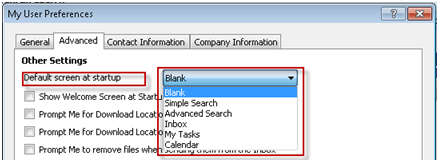
In FileHold 12 you can set the screen you want to see after logging into the FileHold Desktop Application (FDA) opens.

You can set one of the following screens to be the default screen at start-up in the Advanced tab of User Preferences:

  • Blank
  • Simple Search
  • Advanced Search
  • Inbox
  • My Tasks
  • Calendar

Default screen at startup

We love setting the default screen to the Calendar so we can see all of our due tasks and events for the day!

Privacy Overview

This website uses cookies so that we can provide you with the best user experience possible. Cookie information is stored in your browser and performs functions such as recognising you when you return to our website and helping our team to understand which sections of the website you find most interesting and useful.